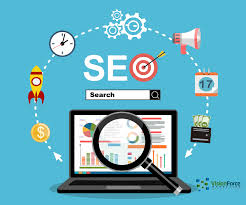
Sites: The Digital Spaces That Connect Us
Sites are part of everyday life. From finding information and keeping in touch to shopping, learning and managing work, websites give people a place to share ideas and access services online. Some are simple pages with a few details; others are large platforms used by millions of people.
What is a site?
A website, often simply called a site, is a collection of related pages available on the internet. Each site has an address, known as a domain name, which people can enter into a browser to visit it. The pages may contain text, images, videos, interactive tools or links to other parts of the site.
Sites serve many purposes. A business might use one to explain its services, while a news organisation may publish articles and updates. Schools, charities, public bodies and individuals also use websites to share information and support their communities.
Different types of sites
Websites can be grouped by what they are designed to do. Common examples include:
- Informational sites, which provide facts, guidance or educational material.
- Business sites, which introduce an organisation, its products or its services.
- Online shops, where visitors can browse and buy products.
- News and media sites, which publish reporting, features, videos or other content.
- Community sites, which help people communicate around shared interests.
- Portfolio sites, which showcase a person’s work, skills or experience.
What makes a good site?
A useful site is clear, reliable and straightforward to navigate. Visitors should be able to understand what the site offers and find key information without unnecessary effort. Clear menus, readable text and well-organised pages all help create a positive experience.
It is also important for a site to work well on different devices. Many people browse on mobile phones, so pages should adapt to smaller screens and load efficiently. Accessibility matters too: descriptive headings, meaningful link text, captions and suitable colour contrast can make a site easier for more people to use.
Trust and safety online
Before sharing personal details or making a payment, visitors should consider whether a site appears trustworthy. Look for clear contact information, transparent terms and a secure connection. A secure address usually begins with “https”, although this alone does not guarantee that a site is legitimate.
Site owners also have a responsibility to protect visitors’ information. Keeping software up to date, using strong security measures and explaining how personal data is handled can help build confidence.
How sites continue to evolve
Websites change as technology and people’s needs change. Modern sites may include interactive features, personalised content and tools powered by artificial intelligence. At the same time, the basics remain important: useful information, dependable performance and a thoughtful experience for every visitor.
Whether a site is created to inform, connect or sell, its value comes from meeting a real need. The most effective sites make it easy for people to find what they came for—and give them a reason to return.
Frequently Asked Questions About Google Sites: Everything You Need to Know
- What is the new Google Sites?
- What is new site?
- Where is my Sites on Google?
- Is Google Sites for websites?
- What is the use of Sites?
- Is Google Sites gone?
- What are Sites used for?
- What are examples of Google Sites?
- What is Sites app?
- What is the use of Sites in Google?
- How do I add a new page to my Google site?
- What will replace Google Sites?
- How to get sites on Google?
- Is Sites Google free?
- What does Google Sites do?
- How to create a website?
What is the new Google Sites?
The new Google Sites is Google’s website-building tool for creating and publishing simple, responsive websites without needing to write code. It includes ready-made layouts and makes it easy to add text, images, Google Docs, Slides, Forms, Maps and other content. Sites can be shared with selected people or published on the web, with editing and access controls managed through a Google account or Google Workspace. It is distinct from classic Google Sites, the older version of the service.
What is new site?
A new site is a website that has recently been created or launched online. It may be a business website, an online shop, a blog or a community platform, and it can take time to build an audience and appear in search results. Before using a new site, check that its information is clear, its contact details are genuine and any payment or privacy processes seem trustworthy.
Where is my Sites on Google?
To find your sites on Google, go to sites.google.com and sign in with the Google Account you used to create them. Your Google Sites should appear on the homepage. If you can’t see a site, check that you’re signed into the correct account, or ask its owner to confirm that you have access.
Is Google Sites for websites?
Yes. Google Sites is a tool for creating and publishing websites, such as portfolios, project pages, team intranets and simple business sites. It offers ready-made layouts and a drag-and-drop editor, so you can build pages without coding. It is well suited to straightforward websites, though you may need a different platform for advanced design, e-commerce or specialist features.
What is the use of Sites?
Sites are used to share information, connect people and provide services online. Businesses use them to showcase products, attract customers and handle enquiries, while individuals and organisations can publish news, resources or creative work. Other sites let people shop, learn, communicate, book services or manage everyday tasks. In short, a site gives its owner a place on the internet to reach an audience and helps visitors find what they need.
Is Google Sites gone?
No, Google Sites is still available. Google discontinued the older version, known as Classic Google Sites, but the newer Google Sites remains active and lets users create and publish websites. If you have an old site, check your Google account to see whether it was migrated or whether you need to rebuild it using the current version.
What are Sites used for?
Sites are used to share information, communicate with others and provide services online. People visit them to read news, learn new skills, shop, book appointments, manage accounts, watch videos or connect with communities. Businesses and organisations use sites to explain what they do, reach customers and offer support, while individuals may use them to publish ideas or showcase their work.
What are examples of Google Sites?
Examples of Google Sites include a personal portfolio, a class or school website, an internal team hub, an event information page, a project site and a simple small-business website. For instance, a teacher might create a site to share lesson resources, while a team could use one to organise documents, updates and useful links. Google Sites provides templates and editing tools to build these pages without needing to write code.
What is Sites app?
The Sites app usually refers to Google Sites, a web-based tool for creating and sharing websites without needing coding skills. It lets you build pages using text, images, files and other Google Workspace content, then publish the site for selected people or the public to view. Google Sites is accessed through a web browser rather than a dedicated mobile app.
What is the use of Sites in Google?
Google Sites is a tool for creating and publishing websites without needing to write code. It can be used to build simple sites for projects, teams, events, classes or businesses, and to share information, documents and other content in one place. Sites can be created collaboratively and, depending on the sharing settings, made available to selected people or to the public.
How do I add a new page to my Google site?
To add a new page to your Google Site, open the site in edit mode and select the “Pages” tab on the right-hand side. Click the plus button, choose “New page”, enter a name for the page and select “Done”. When you’re ready for visitors to see it, click “Publish” to update your site.
What will replace Google Sites?
There is no single replacement for Google Sites; the best alternative depends on what you need. Wix and Squarespace offer more design options for public-facing websites, while WordPress provides greater flexibility and control. For internal team sites, Microsoft SharePoint may be a better fit, particularly for organisations already using Microsoft 365. Google Sites may still suit simple websites, so consider your budget, technical experience and required features before choosing an alternative.
How to get sites on Google?
To help your site appear on Google, make sure its pages are accessible to search engines and offer useful, original content. Set up Google Search Console, verify your site and submit an XML sitemap; you can also use the URL Inspection tool to request indexing for important pages. Check that pages aren’t blocked by your robots.txt file or marked “noindex”, and add clear links between pages so Google can discover them. Indexing and ranking can take time, and submitting a site does not guarantee when or where it will appear in search results.
Is Sites Google free?
Yes, Google Sites is free to use with a Google account. It lets you create and publish a basic website without paying for hosting, and you can use a Google Sites web address. If you want to use a custom domain, you may need to purchase the domain separately. Some features and storage options can also depend on your Google Workspace plan.
What does Google Sites do?
Google Sites is a free website-building tool from Google that lets you create and publish simple websites without needing to code. You can use it to make team intranets, project pages, event sites, portfolios or classroom resources, and add content such as text, images, documents, calendars and videos. It also works with other Google Workspace tools, making it easy to share information and collaborate with others.
How to create a website?
To create a website, start by deciding its purpose and who it is for. Choose a domain name and a hosting service, then build the site using a website builder or a content management system. Select a clear, mobile-friendly design and add useful content, such as information about your services, contact details or articles. Before publishing, check that links work, pages load properly and the site is easy to use on different devices. Remember to keep it secure and update its content regularly.